Unleashing My HTML Mastery

Mastering Your Blog’s Identity: A Comprehensive Guide to Custom Backgrounds and Creative Design
Every blog tells a story, and just like a well-designed home, its appearance plays a crucial role in conveying its unique personality. In the digital realm, your blog is your personal space, and transforming it into something truly “you” is an empowering act of creativity. This guide delves into the art of personalizing your blog, focusing on how a custom background can dramatically alter its aesthetic and feel, turning what might be a generic template into a distinctive online presence.
While my own journey often involves hands-on house transformations, the principles of taking something you dislike and molding it into a reflection of your individual style apply equally to your digital space. This post isn’t about interior design, but rather about leveraging your creative spirit to build a blog that stands out and resonates with your vision.
The Quest for a Perfect Blog Aesthetic: Moving Beyond Generic Designs
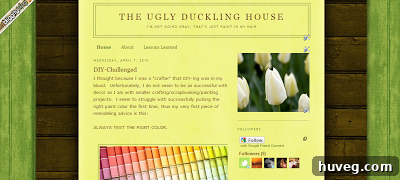
Previously, my blog sported a background downloaded from a popular resource like Hot Bliggity Blog. While it initially offered a “work-in-progress” vibe that I appreciated, the pervasive green hue just didn’t quite align with my evolving aesthetic. It’s a common dilemma for many bloggers: finding a pre-made design that’s *almost* right, but ultimately falls short of truly capturing their brand or personal taste. This experience highlighted the limitations of relying solely on off-the-shelf solutions and fueled my desire for deeper customization.
My blog is constantly evolving, much like a living project. Over the coming months, I anticipate numerous visual adjustments to reflect the ongoing changes in my personal life and home projects. This dynamic nature underscored a critical need: the ability to implement these design changes myself, without being beholden to rigid templates or external designers. The challenge, however, lay in understanding the technicalities – how to make these desired modifications effectively and, crucially, how to ensure my carefully crafted background images actually appeared on screen.
Unlocking Customization: The Breakthrough Moment
The path to a customized blog background isn’t always straightforward. My initial attempts involved exploring resources like the “Free Blogging Secrets” page found on Cutest Blog on the Block. While promising, their instructions unfortunately left me with a frustratingly blank white background, failing to achieve the desired visual impact. This phase of trial and error is often part of the learning process for any DIY blogger; it’s a testament to the fact that not all solutions fit every platform or every user’s specific needs.
However, persistence pays off. My continued research eventually led me to another invaluable resource: this particular blogger’s post, which contained the precise HTML code required to implement a custom background. Despite my growing skepticism from previous failed attempts, I decided to give it one last try. To my absolute delight, it worked! The relief and excitement of finally seeing my custom design come to life were immense, marking a significant step in taking full control of my blog’s appearance.
Sharing the Knowledge: A Step-by-Step Guide to Your Custom Blog Background
In the spirit of collaboration and ensuring this valuable information remains accessible, I’m replicating the instructions here. While these steps are tailored for Blogger, the underlying principles of image preparation, hosting, and HTML/CSS modification are widely applicable across various blogging platforms. Please note that platform interfaces evolve, but the core concepts remain relevant.
Phase 1: Preparing Your Custom Background Image
1. Image Hosting: Your Digital Canvas Repository
The first crucial step is to host your custom background image online. This makes it accessible via a direct URL, which your blog’s HTML can reference. Historically, platforms like Photobucket were popular choices for this. While Photobucket’s services have evolved significantly over time, becoming less geared towards free direct image linking for external sites, the fundamental need for an image host remains. For contemporary bloggers, alternatives like Imgur, Flickr, or even your blog platform’s native media library (e.g., WordPress Media Library) offer robust solutions. The key is obtaining a stable, direct link to your image.
2. Crafting Your Visual Identity: Image Creation & Dimensions
Your background image is more than just a picture; it’s an extension of your brand. Using image editing software such as Adobe Photoshop, GIMP (a free and open-source alternative), or my personal favorite for its simplicity and affordability, Paint.NET, create your background image. For optimal display, a size of **1700 x 1320 pixels** at **72 resolution** (standard for web images) is a good starting point. These dimensions are generous enough to accommodate various screen sizes without excessive stretching or pixelation, particularly for non-repeating backgrounds.
- **Consider Resolution:** 72 DPI (dots per inch) is ideal for web graphics, balancing clarity with file size.
- **Dimensions Matter:** The chosen dimensions (1700x1320px) provide a wide enough canvas for most desktop views, ensuring your design is visible without being cut off.
- **File Format:** JPEG for photographs and images with gradients, PNG for images with transparency or sharp lines.
3. Design with Readability in Mind: Color Contrast & Composition
When designing your background, prioritize the readability of your blog’s content. If your blog’s text is dark, opt for a lighter background in the central content area to ensure sufficient contrast. Conversely, if your text is light, a darker background will provide better visibility. Experiment with patterns, textures, or subtle gradients. Remember, the background should complement, not overpower, your main content. Think about how the elements of your design will interact with your blog posts, sidebar, and header.
4. Uploading Your Masterpiece to Your Chosen Host
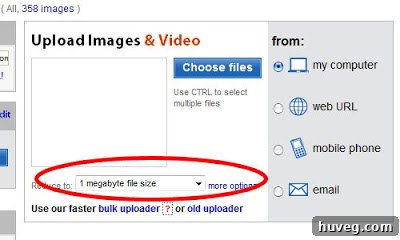
Once your custom background image is perfected, upload it to your chosen image hosting service. If using a service like Photobucket (as in the original guide), be mindful of any free account limitations, such as a 1-megabyte maximum file size for uploads. Optimizing your image for the web (compressing it without losing too much quality) is crucial for faster page loading times, which is vital for user experience and SEO.
Phase 2: Implementing Your Custom Background in Blogger
5. Navigating to Your Blog’s Layout Settings
Log into your Blogger account. On your dashboard, locate and select the “Layout” tab. This section is your control center for customizing your blog’s structure and visual elements. If you’re starting with a fresh blog or wish to reset your template, select a new template, specifically the “MINIMA” template. The Minima template is often recommended for custom work due to its clean and minimalist structure, which provides a straightforward canvas for modifications.
6. Accessing the HTML Editor: The Code Behind the Design
Within the Layout section, click on “Edit HTML.” This will open the raw HTML code of your blog’s template. Don’t be intimidated; we’re only making a small, targeted modification. To quickly locate the relevant section, use your browser’s search function (CTRL+F or Command+F) and search for “body {“. You’re looking for the CSS styling applied to the `
` element, which dictates the overall background of your webpage. It typically looks something like this:body {
background:$bgcolor;
margin:0; color:$textcolor; font:x-small Georgia Serif; font-size/*
*/:/**/small; font-size: /**/small; text-align: center;
}7. Injecting Your Custom Background CSS
Now, you’ll modify this `body` style block to include your custom background image. Replace or augment the existing `background:$bgcolor;` line to incorporate the necessary CSS properties. The updated code should look similar to this:
body {
  background:$bgcolor;
  background-image:url(direct link);
  background-position: center top; /* Changed to center top for better placement */
  background-repeat:no-repeat;
  background-attachment:fixed;
  margin:0; color:$textcolor; font:x-small Georgia Serif; font-size/*
  */:/**/small; font-size: /**/small; text-align: center;
}
Let’s quickly break down the new CSS properties:
background-image:url(direct link);: This is the core property that tells your browser to use your image as the background. You will replace `(direct link)` with the URL from your image host.background-position: center top;: This positions your background image in the center horizontally and at the top vertically. Other options include `left top`, `right bottom`, or specific pixel values.background-repeat:no-repeat;: This is crucial. It ensures your background image appears only once and doesn’t tile (repeat) across the page, which is ideal for a single, large background image.background-attachment:fixed;: This property makes your background image static. As users scroll down the page, the content moves, but the background image remains in its fixed position, creating a visually appealing parallax-like effect.
8. Inserting Your Image’s Direct Link
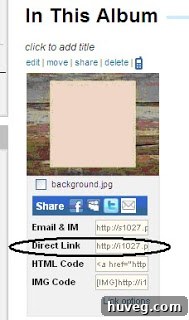
Return to your image hosting platform (e.g., Photobucket or your chosen alternative). Locate your uploaded image. Typically, if you hover your mouse over the image in your album or click on it, several link options will appear. Find the “Direct Link” (sometimes labeled “Hotlink” or “Embed”). Copy this exact URL. Then, paste it into your Blogger HTML code, replacing the `(direct link)` placeholder within the `url()` function.
9. Saving Your Changes: Presto Change-o!
Once you’ve carefully inserted the direct link, click the “Save Template” button. Allow a moment for the changes to propagate, then view your blog. You should now see your custom background proudly displayed! This moment of successful transformation is incredibly rewarding and a testament to your newfound design skills.
Beyond the Background: Elevating Your Blog’s Overall Design
While a custom background is a fantastic starting point, it’s just one element in a holistic blog design. My current background is still a work in progress, leaning towards simplicity. The next logical step, and one I’m actively considering, is to refine the blog’s header. The header, along with your custom background, typography, and color palette, forms the cornerstone of your blog’s visual brand identity. Consistent design across all these elements ensures a professional and cohesive look that enhances user experience.
The Power of Personal Branding Through Design
A distinctive blog design isn’t just about aesthetics; it’s about personal branding. A unique background immediately differentiates your blog from the myriad of generic sites online. It communicates professionalism, creativity, and attention to detail. This visual identity helps readers remember your blog, fosters a sense of trust, and encourages repeat visits. It’s a non-verbal handshake, inviting visitors into your unique digital space.
SEO Benefits of Thoughtful Design
While custom backgrounds don’t directly impact SEO keywords, a well-designed blog contributes indirectly but significantly to your search engine ranking. An aesthetically pleasing and user-friendly site encourages longer session durations and lower bounce rates, signals to search engines that your content is valuable and engaging. Furthermore, optimized image sizes (as recommended in our image creation phase) contribute to faster page load times, which is a direct SEO ranking factor.
Troubleshooting Common Issues
If your background doesn’t appear as expected, here are a few common culprits and solutions:
- **Incorrect Direct Link:** Double-check that the URL you pasted is the *direct link* to the image, not a page containing the image.
- **Typo in Code:** Even a missing semicolon or bracket can break the CSS. Review your `body` code carefully.
- **Browser Cache:** Your browser might be loading an old version of your blog. Clear your browser’s cache and cookies, or try viewing your blog in an incognito/private window.
- **Image Host Issues:** Ensure your image host is reliable and your image is publicly accessible.
- **Conflicting CSS:** Sometimes, other CSS in your template might be overriding your background settings. This is less common with a basic background property but worth considering for advanced issues.
Future-Proofing Your Design: Responsive Considerations
As you delve deeper into design, consider responsive web design. While a fixed background image works well for desktops, it might not be ideal for mobile devices. For a truly adaptive design, you might explore using CSS media queries to apply different background styles or images based on screen size. This ensures your blog looks great on any device, enhancing accessibility and user satisfaction.
Embarking on the journey of custom blog design is incredibly rewarding. It allows you to transform your digital space into a true reflection of your unique voice and vision. Don’t hesitate to experiment, learn, and iterate. Your blog is a canvas; make it uniquely yours!