Quickly Test Any Remote Using Your Smartphone Camera

The Ultimate Smartphone Trick: Test Your Remote Control in Seconds
We’ve all been there: you settle down for a relaxing evening, grab your remote, press a button, and… nothing. A blank screen, no volume change, or a stubbornly unresponsive smart device. Is it the batteries? Is the remote broken? Or is the device itself the culprit? Before you frantically search for new batteries or worse, consider buying a replacement remote, there’s a simple, ingenious trick you can perform with an everyday item you already own: your smartphone.
This isn’t just a clever hack; it’s a diagnostic superpower that can save you time, frustration, and money. It’s one of those “why didn’t I know this sooner?” revelations that, once learned, becomes an indispensable tool in your tech troubleshooting arsenal. Whether it’s your TV, air conditioner, sound system, or even a sophisticated smart home device like a Bluetooth-enabled bath fan, this method offers an immediate answer to the nagging question of your remote’s functionality.
The Frustration of a Faltering Remote
The modern home is filled with remote controls, each a gateway to convenience. From cycling through channels to adjusting the thermostat, these small devices are central to our daily comfort. However, their reliance on small, often hard-to-find batteries means they are frequent victims of unexpected failure. The symptoms are familiar: unresponsive buttons, intermittent functionality, or complete silence.
Traditionally, troubleshooting a dead remote involves a series of educated guesses: replacing batteries (sometimes multiple times if you don’t have fresh ones readily available), cleaning battery terminals, or even just tapping the remote against your palm in a desperate plea for it to work. Each step is time-consuming and often based on assumption rather than diagnosis. What if you could definitively know if the remote was sending a signal, regardless of the receiving device?
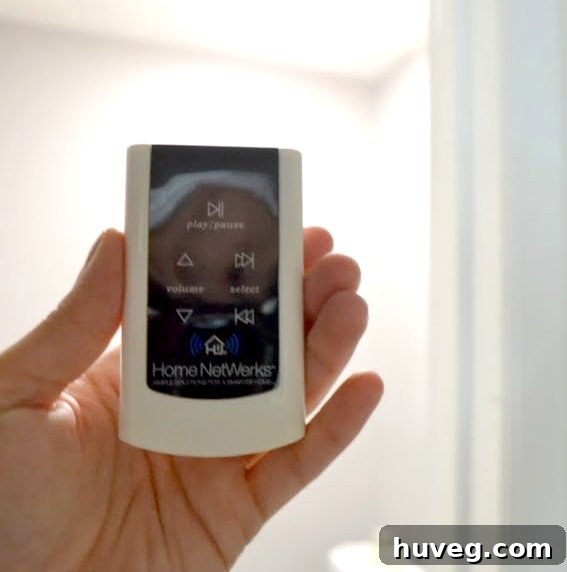
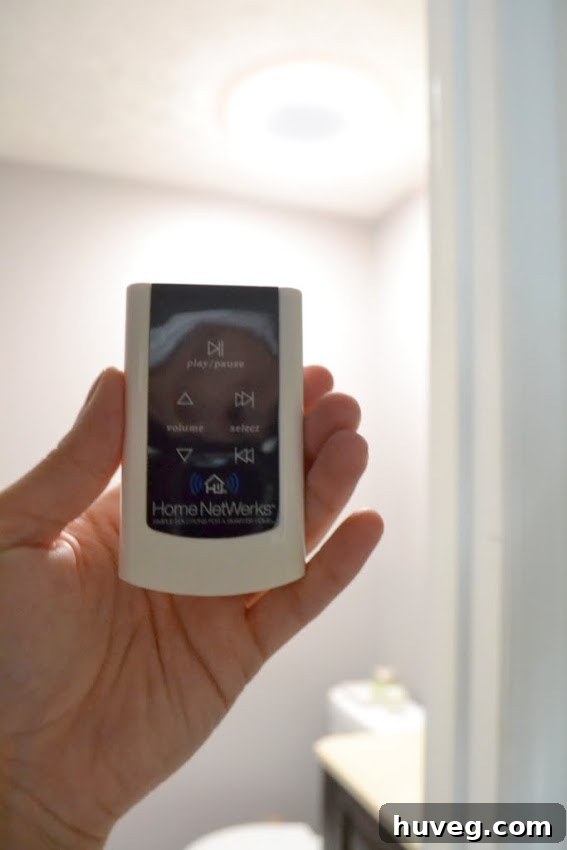
This exact scenario played out recently during a home improvement project. I was assisting with the installation of a new (awesome) bath fan in a guest bathroom – a truly awesome unit with integrated Bluetooth functionality. Getting everything to work seamlessly was a multi-step process: ensuring the wiring for the fan and switch was correct, configuring the settings on the switch itself, and finally, confirming the remote control was properly communicating with the fan to manage its smart features.
With so many interdependent components, isolating the problem source was crucial. It was during this complex testing phase that I witnessed a simple yet profound technique that immediately clarified one critical piece of the puzzle: the remote’s health.
The Genius Smartphone Camera Trick Revealed
As we meticulously went through each component, step by step, I noticed the person helping me performing an odd action: pointing the remote at his smartphone camera and pressing buttons. My curiosity, always piqued during a project, got the better of me. “What on earth are you doing?” I asked, perhaps a little too directly, but thankfully, he knew my inquisitive nature.
His response was a game-changer: “It’s a trick to test remote batteries. Your eyes can’t see the infrared light it emits, but your phone camera can.” And just like that, a long-standing mystery was solved with a simple piece of readily available technology.
How to Test Your Remote with Your Smartphone Camera
This trick is incredibly straightforward and takes mere seconds to execute. Here’s a detailed, step-by-step guide:
- Grab Your Tools: You’ll need the remote control you wish to test and your smartphone. Make sure your phone’s battery isn’t dead!
- Open Your Camera App: Launch the default camera application on your smartphone. While either the front or rear camera can work, using the front-facing (selfie) camera often provides a more convenient way to observe the screen while pointing the remote.
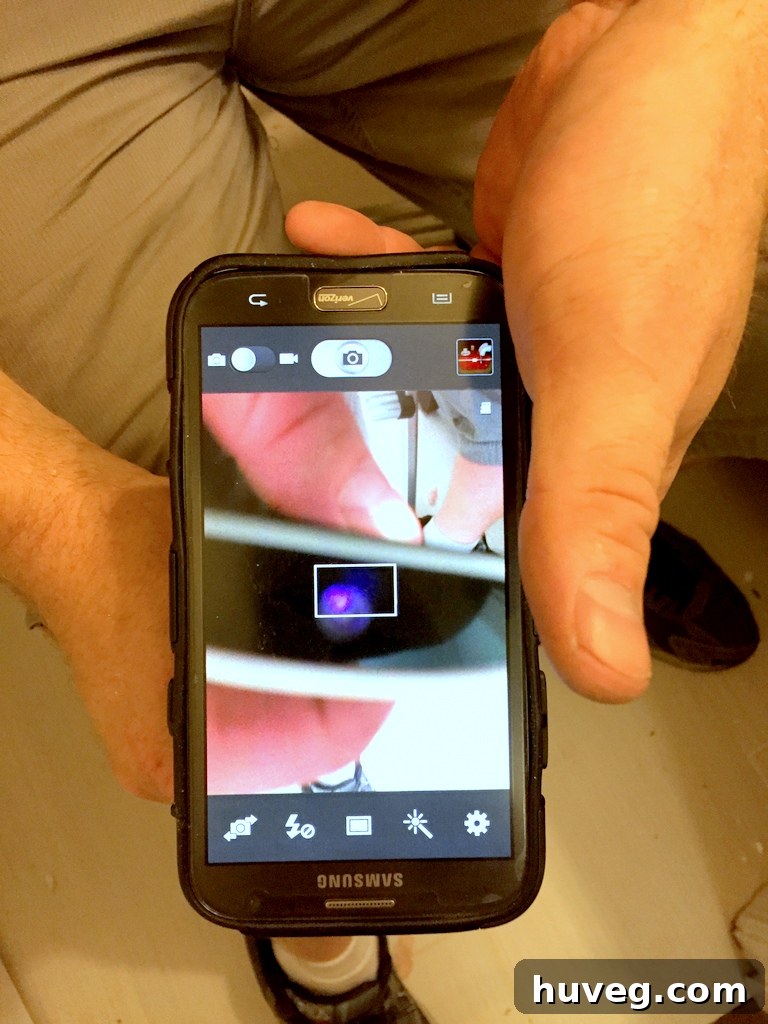
- Point the Remote: Hold the remote control with the infrared (IR) emitter – usually the small, clear plastic bulb at the very top edge – pointed directly at your phone’s camera lens. Ensure there’s a clear line of sight between the remote’s emitter and the camera.
- Press a Button: With the remote aimed at the camera, press and hold any button on the remote control. A commonly used button like “Power” or “Volume Up” is ideal.
- Observe Your Phone Screen: Look at your smartphone’s display. If the remote is functioning and sending a signal, you will see a small, distinct flash or pulse of light emanating from the remote’s emitter on your screen. This light will often appear white, purple, or pinkish, and it will only be visible through the camera, not to your naked eye.
Interpreting the Results:
- Bright, Consistent Flash: If you see a clear, bright flash every time you press a button, your remote control is successfully sending an infrared signal. This means the batteries are likely good, and the remote’s internal circuitry is working. If your device still isn’t responding, the problem lies elsewhere – perhaps with the receiving device itself or an obstruction.
- Weak or Intermittent Flash: A faint, flickering, or inconsistent flash suggests that the batteries are low and struggling to provide enough power, or that the remote’s emitter might be partially obstructed or failing. Replacing the batteries should be your next step.
- No Flash at All: If there’s absolutely no light visible on your phone screen when you press buttons, it’s a strong indicator that your remote is either completely dead (due to exhausted batteries) or faulty. Start by replacing the batteries with fresh ones. If the problem persists, the remote itself may need replacement or repair.
Why Does This Work? Understanding Infrared Light
The magic behind this trick lies in the nature of infrared (IR) light and how modern smartphone cameras are designed. Most remote controls, particularly those for consumer electronics like TVs, DVD players, and air conditioners, communicate using infrared light signals.
Infrared light is part of the electromagnetic spectrum, just like visible light, radio waves, and X-rays. However, its wavelength is longer than that of visible light, making it imperceptible to the human eye. When you press a button on your remote, it sends out a specific pattern of IR light pulses, which are then detected and decoded by the receiving device (e.g., your TV). Each pattern corresponds to a specific command, like “volume up” or “power off.”
So, why can your phone camera see it? Most digital cameras, including those in smartphones, use Charge-Coupled Device (CCD) or Complementary Metal-Oxide-Semiconductor (CMOS) sensors. These sensors are inherently capable of detecting a broader spectrum of light than the human eye, including some infrared wavelengths. While camera manufacturers often incorporate IR filters into their lenses to prevent IR light from distorting images (as it can cause color shifts), these filters are rarely 100% effective. Enough IR light typically penetrates the filter to be picked up by the sensor, especially when the IR source is pointed directly at it and is pulsing brightly.
This is why the light often appears white or purplish on your screen – it’s the camera sensor registering light outside the visible spectrum and rendering it as a color it can display.
Beyond Just Batteries: Wider Applications and Benefits
While the primary use for this trick is undoubtedly to quickly ascertain the state of your remote’s batteries, its utility extends far beyond simple battery checks. This method offers several significant benefits:
- Diagnose Remote Malfunctions: If you’ve replaced the batteries and still see no flash, it’s a clear indicator that the remote itself is faulty. This helps differentiate between a dead battery problem and a broken remote, guiding your next steps more accurately.
- Pinpoint Button Issues: Sometimes, only specific buttons stop working. By pressing different buttons on the remote and observing the flashes, you can identify if the problem is isolated to a few unresponsive buttons or if the entire remote is defunct.
- Save Time and Money: No more buying expensive batteries you don’t need or replacing a perfectly good remote. This trick provides an instant diagnosis, preventing unnecessary purchases and wasted effort.
- Universal Application: This method works for almost any remote control that uses infrared signals. This includes remotes for televisions, cable boxes, streaming devices, DVD/Blu-ray players, stereos, air conditioners, ceiling fans, some garage door openers, and a multitude of smart home devices. It’s a truly universal troubleshooting tool.
- Empowering DIY Troubleshooting: It puts a powerful diagnostic tool directly into your hands, enabling you to quickly solve common tech frustrations without needing specialized equipment or professional help.
Troubleshooting and Common Issues
Even with this clever trick, sometimes you might encounter situations where the remote still doesn’t respond or your phone doesn’t detect a flash. Here are some troubleshooting tips:
- Check Battery Orientation: A surprisingly common mistake is inserting batteries backward. Double-check the positive (+) and negative (-) terminals match the markings inside the battery compartment.
- Clean Battery Terminals: Corrosion or dirt on the battery terminals can prevent proper contact. Gently clean them with a cotton swab and rubbing alcohol or a pencil eraser.
- Try Different Batteries: Even new batteries can sometimes be faulty or have a low charge. If you have another set of fresh batteries, try those.
- Consider Your Phone’s Camera: While most smartphone cameras work, some newer models may have more aggressive IR filters that block out too much infrared light. If you have an older smartphone or a dedicated digital camera, try using that. The front-facing camera on many phones often has a weaker IR filter than the rear camera.
- Test in Darker Conditions: In bright ambient light, the subtle flash from the remote might be harder to discern on your phone screen. Trying the test in a dimly lit room can make the flash more apparent.
- If the Remote Flashes but Device Doesn’t Respond: This is a crucial distinction. If your remote is sending a signal (you see the flash), then the problem is with the receiving device. This could be due to:
- Line of Sight Obstruction: Something blocking the path between the remote and the device’s IR receiver.
- Device’s IR Receiver Malfunction: The receiver on your TV or other device might be dirty, damaged, or faulty.
- Device Itself is Unresponsive: The TV/device might be frozen, off, or experiencing an internal issue unrelated to the remote.
Prolonging the Life of Your Remote Controls
Now that you’re armed with the knowledge to diagnose remote issues, let’s look at some preventative measures to keep your remotes functioning optimally for longer:
- Use Quality Batteries: Investing in reputable alkaline batteries can prevent premature failure and reduce the risk of leakage, which can severely damage the remote’s internal components.
- Store Safely: Avoid leaving remotes in direct sunlight or in extremely hot or cold environments, as these conditions can degrade batteries and damage internal electronics. Keep them away from moisture.
- Keep Them Clean: Dust, grime, and spills can accumulate around buttons and inside the remote, affecting conductivity. Periodically clean the remote’s exterior with a soft, damp cloth. For sticky buttons, a cotton swab with a small amount of rubbing alcohol can help.
- Protect from Drops: Remotes are often dropped, which can dislodge internal components or damage the IR emitter. Consider a protective silicone cover, especially if you have young children or frequently drop things.
- Remove Batteries During Long Storage: If you plan not to use a remote for an extended period (e.g., for a seasonal device or during a long vacation), remove the batteries to prevent leakage.
Empower Yourself with Simple Tech Knowledge
This seemingly small trick is a prime example of how a bit of understanding about the technology around us can significantly simplify our lives. It transforms a common household frustration into a quick, solvable problem. No longer will you be left guessing whether your remote has truly given up the ghost or just needs a fresh set of batteries.
So, the next time your remote acts up, don’t despair. Grab your smartphone, perform this quick test, and identify the issue with confidence. Share this incredibly useful tip with friends and family, and help empower everyone to become a better home tech troubleshooter. What other simple, overlooked tech tricks do you rely on?